01 — CAPTURE
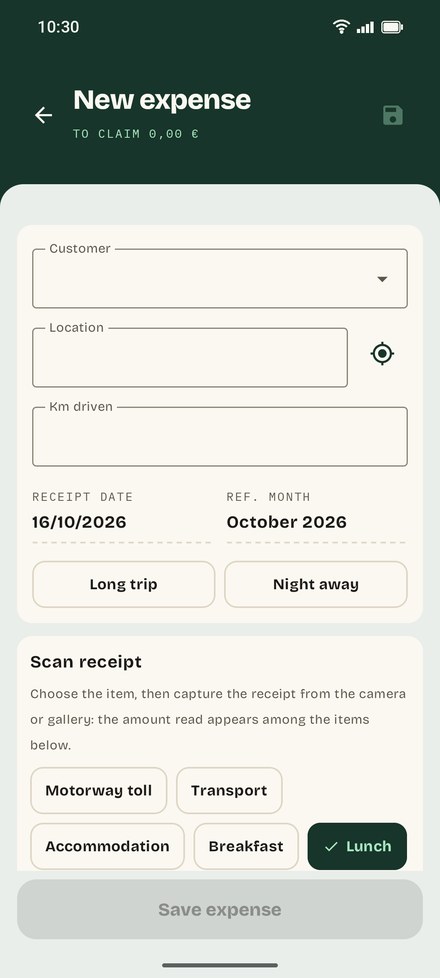
Pick the item, snap, done
One button: Google's scanner frames the receipt and straightens it, or you pick the
camera or the gallery. The OCR reads amount, date and payment method and fills in the
item you chose. Client, place and kilometres are suggested from your earlier
trips.
offline OCRGoogle scannerautomatic km
02 — RECEIPT
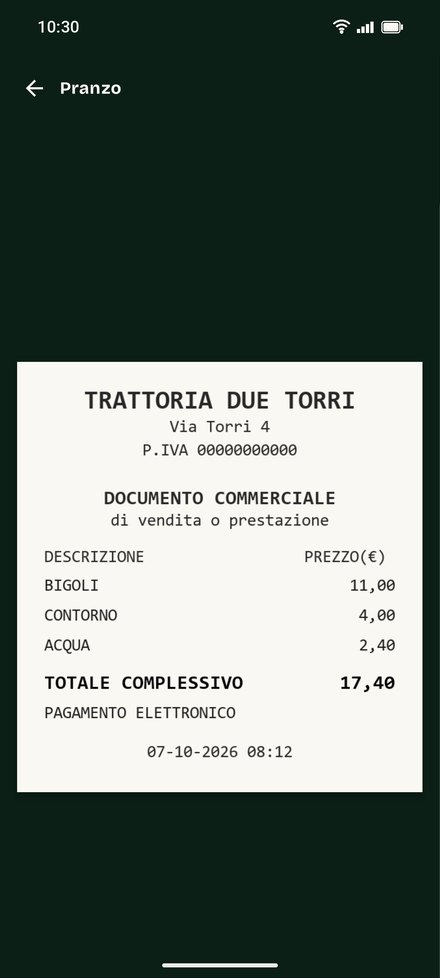
The photo stays with the expense
The straightened, readable receipt stays attached to its item: open it again whenever
you like, full screen. If needed, crop it by hand by dragging the corners.
attached photosmanual cropoffline
03 — SUMMARY
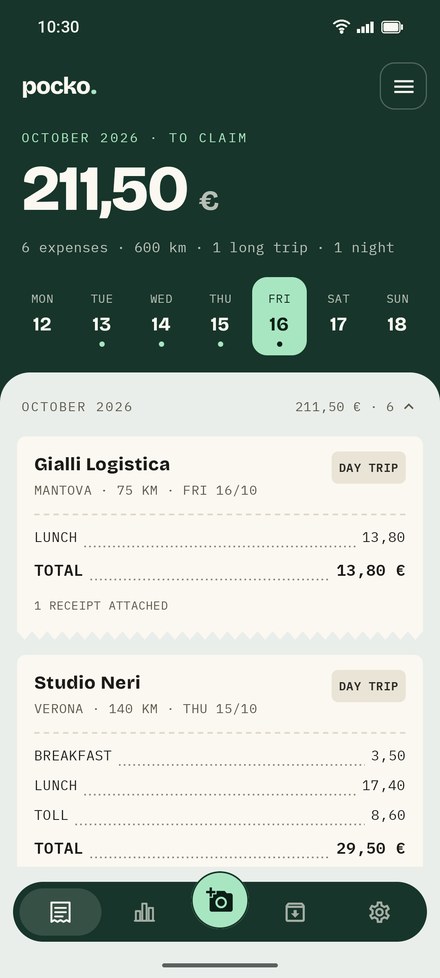
The month closes itself
The month's expense report looks like a receipt: total per item, kilometres, long trips
and nights away. Spending caps show the capped amount when something goes over, and
tolls are imported straight from the Telepass or Unipol Move PDF. You choose the currency
and the distance unit, kilometres or miles.
spending capsmileage refundTelepass and Unipol tolls
04 — HAND-IN
Export and you're done
Pick the month's receipts and create in one go the Excel file with your own columns,
the CSV and a collage of the receipts on an A4 sheet, in order, with date and item on each.
The .zip backup carries the photos along too.
ExcelCSVA4 collage.zip backup